How do I configure LDAP authentication?
Citadel can authenticate users against an external LDAP directory server, allowing seamless single sign-on across your organization. Citadel supports both the standard POSIX schema (RFC 2307, common with OpenLDAP and FreeIPA) and Microsoft Active Directory.
Recommendation: While you can configure LDAP settings in WebCit, it is generally much easier and strongly recommended to configure LDAP during initial setup using the setup program. This ensures that Citadel's initial administrator account and authentication mode are established correctly before users begin logging in.
Understanding LDAP Configuration Parameters
To connect Citadel to an LDAP directory, you will need the following information from your directory administrator:
- Host name and Port: The network address or hostname of your LDAP directory server. The standard LDAP port is
389(or636for LDAPS). - Base DN (Search Base): The distinguished name representing the root container where your user accounts reside. When a user logs in, Citadel searches within this subtree to find the matching account.
- OpenLDAP example:
ou=People,dc=example,dc=com - Active Directory example:
cn=Users,dc=example,dc=com
- OpenLDAP example:
- Bind DN (Service Account): The full distinguished name of an account Citadel uses to log in to the LDAP directory to perform searches. Most directory servers do not permit anonymous searches, so a dedicated service account is required.
- OpenLDAP example:
cn=citadel-service,ou=Services,dc=example,dc=com - Active Directory example:
cn=queries,cn=Users,dc=example,dc=com
- OpenLDAP example:
- Bind Password: The password associated with the Bind DN service account.
- LDAP Group for Administrator Privileges: An optional LDAP group name. Users who belong to this group in your directory will automatically receive administrator privileges when they log in to Citadel.
Configuring LDAP in WebCit
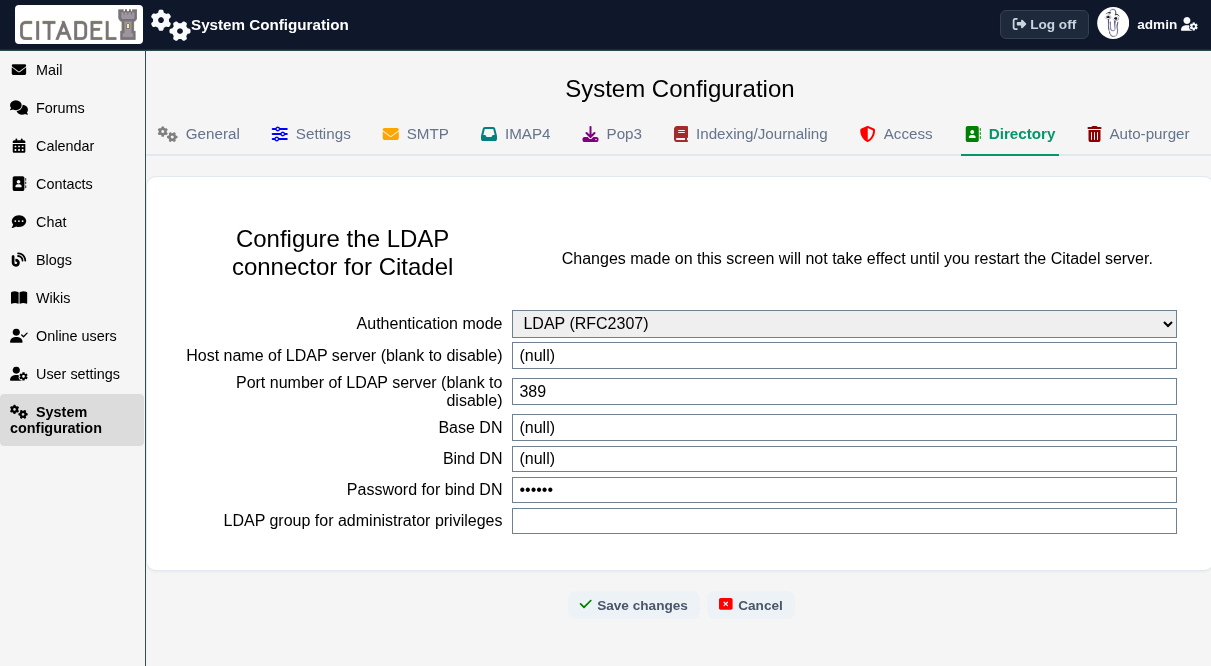
To view or modify LDAP settings within WebCit:
- Click System Configuration in the sidebar.
- Select the Directory tab.
- Select your Authentication mode (such as
LDAP (RFC2307)orActive Directory). - Enter the server hostname, port, Base DN, Bind DN, and password.
- Click Save changes.
Note: Changes made on this screen do not take effect immediately. You must restart the Citadel server process for directory authentication changes to take effect.
Designating Administrators in LDAP Mode
Administrator privileges in LDAP mode are assigned based on directory group membership. Configure the LDAP group for administrator privileges setting (either in WebCit or during initial setup) with the name of the group you wish to grant administrative control, such as Domain Admins or citadel-admins.
Any directory user belonging to that LDAP group is automatically granted full administrator privileges upon logging into Citadel.
For more detailed instructions specific to Windows Server, refer to the Active Directory single sign-on guide.